August 10th, 2026

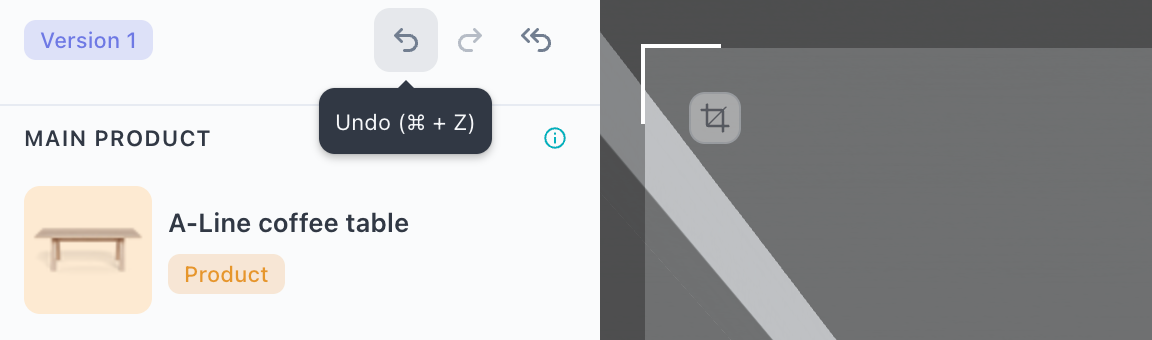
You can now undo adjustments directly in Studio. Hit undo to step back through your recent changes — no more starting over when a tweak doesn't land right.
Why it matters
Fine tuning in Studio often involves trial and error. Until now, a misstep meant manually reverting changes. The undo button lets you iterate faster and with less friction, so you can focus on getting the shot right.
Details
Supports undoing recent adjustments made within a Studio session (Anything within the controls on the right, not settings, product changes, or view adjustments)
Keyboard shortcut
Follows the same pattern introduced earlier in Dimension Shots
Accessible from the Studio toolbar
Now get back in Studio and create content faster than ever!
July 30th, 2026
New

We're excited to announce the release of Product Labeling — a new way to organize, filter, and manage products in your library using custom labels.
What's new:
Create custom labels that match your business categories
Apply labels in bulk across multiple products at once
Filter your product library by label for faster discovery
Why it matters:
Whether you're managing a handful of products or a large catalog, labels give you a flexible, customer-defined way to organize and find what you need — making it faster to discover and act on the right products at scale.
What's next:
We're already working on richer metadata modeling, stay tuned!
Here you can find all you need to know about labels in the Cylindo Library
July 29th, 2026
Improved

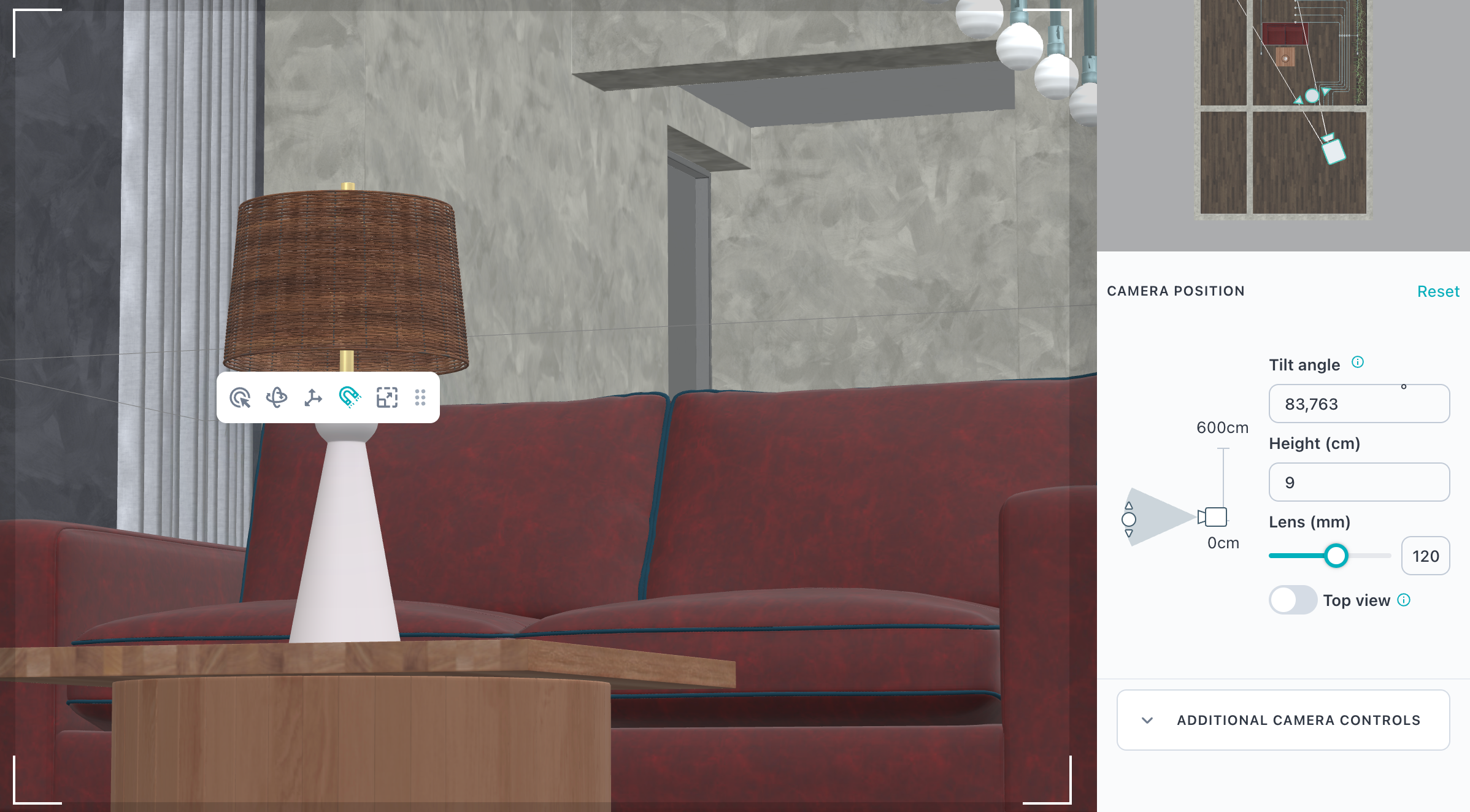
For years, Studio has delivered powerful product rendering — but with one constraint that professional photographers and creative teams kept bumping into: a fixed 50mm equivalent camera. That changes now.
We're introducing Variable Focal Length control in Studio, giving you the freedom to shape your renders with the same precision you'd expect from a real-world camera setup.
Every focal length tells a different story. A wide 16mm lens captures the full presence of a large sectional sofa in context. An 85mm portrait lens isolates a designer lamp with beautiful compression and minimal distortion. A 200mm telephoto flattens perspective to make product details feel intimate and refined.
Until now, you had to work within the boundaries of a single standard lens. Now, you choose the look.
Dial in your focal length — Use the new slider in Camera Settings to move seamlessly between 16mm and 200mm, covering everything from ultra-wide to super telephoto.
See it live — The canvas updates in real time as you drag, so you can compose your shot with confidence before committing to a render.
Render what you see — The final output faithfully matches the focal length you've set. No surprises between preview and delivery.
You'll find the new focal length slider right inside the Camera Settings panel. It fits naturally into your existing workflow with zero learning curve.
Variable Focal Length is available now in Studio. Open your Camera Settings and start exploring.
July 2nd, 2026
New

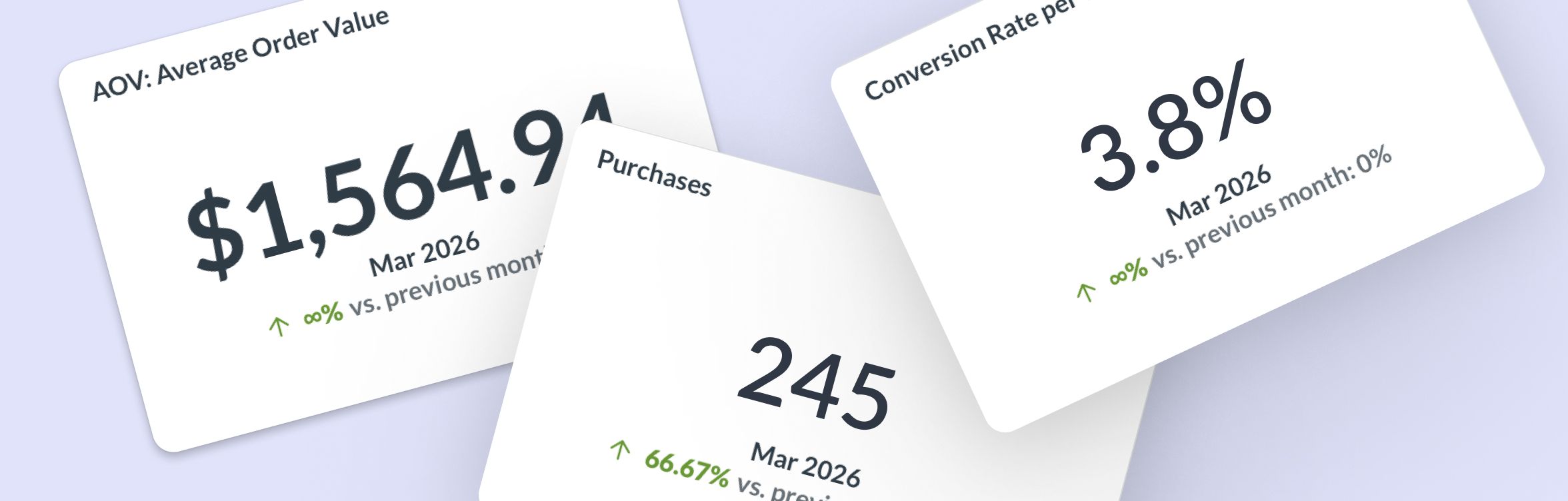
The new General performance dashboard is now live!
Connect Cylindo with Google Analytics 4 to gain a deeper, data-driven understanding of how your 3D and visual content performs — and how it influences customer behavior.
This integration makes it easier to tie your visual content strategy directly to measurable business outcomes, all in one place.
Once integrated, you'll unlock additional insights directly within your General Performance dashboard.
Ready to get started?
Contact your Customer Success Manager today to enable GA4 integration and start unlocking these insights.
May 13th, 2026
Improved

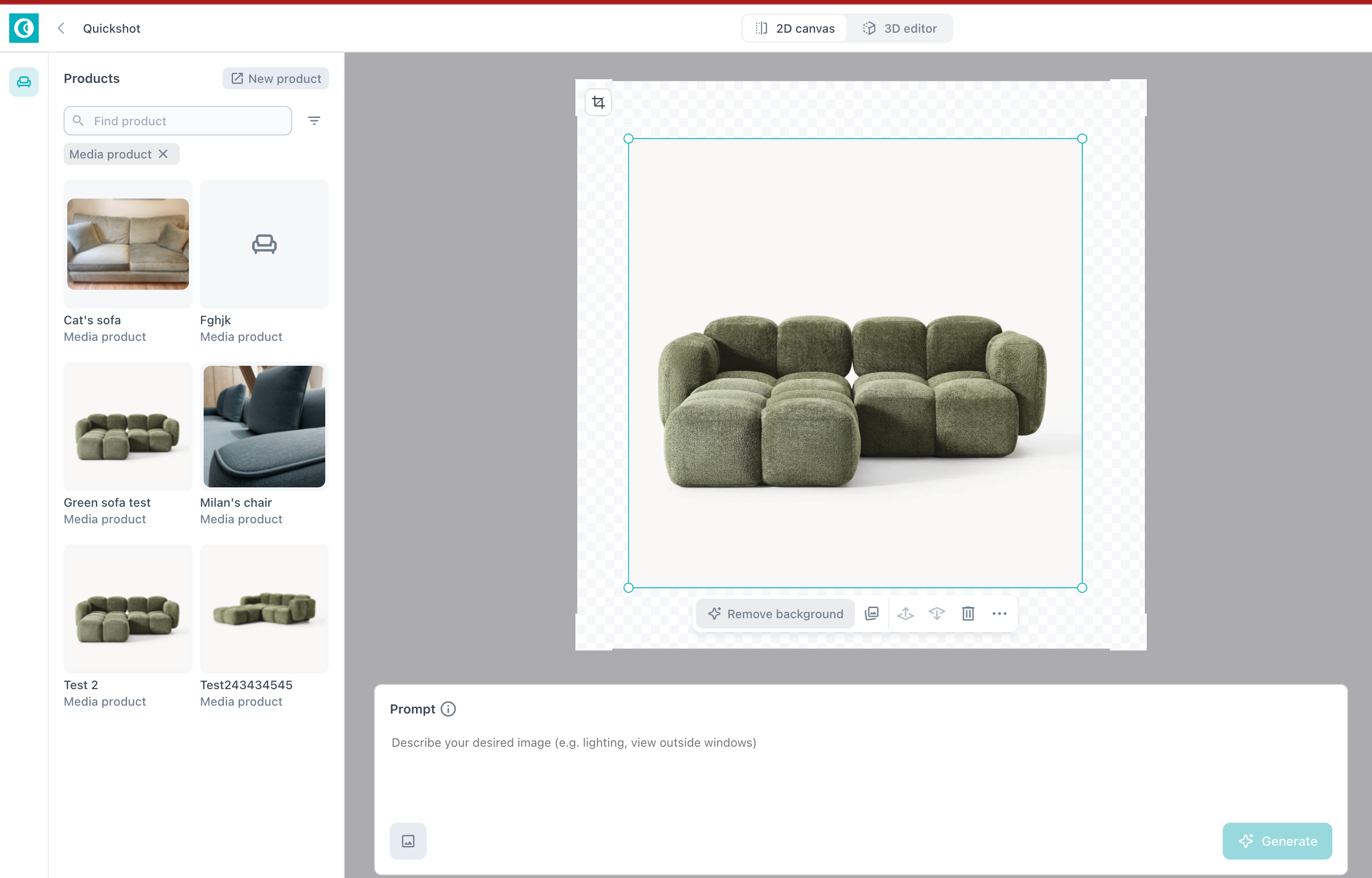
Media Products are a new product type in Quickshot built on your existing imagery — silo shots, lifestyle photography, or any product photos you have on hand — rather than a full 3D Master Asset.
They behave like any other product inside Quickshot's 2D canvas: you can place them, duplicate them, remove backgrounds, layer them with Master Assets in the same scene, generate new lifestyle visuals from them, and publish those visuals to the Curator.
Media Products are designed for products where a Master Asset isn't planned, hasn't been created yet, or simply isn't the right level of investment.
Asset readiness has always been the gating factor for getting a product into Quickshot. Media Products remove that gate, which translates into real business impact:
No more waiting on asset creation to go to market. New launches, seasonal drops, and time-sensitive campaigns can start producing lifestyle visuals on day one, using imagery your team already has.
Coverage for the long tail of your catalog. Products that don't justify the cost or effort of a full Master Asset — secondary SKUs, supporting pieces, slow-movers — can still get rich lifestyle imagery and a proper PDP experience, expanding what you can merchandise.
More value from photography you've already paid for. Existing silo and lifestyle shots become reusable building blocks for new generated visuals, instead of one-and-done assets.
Richer multi-product scenes without scaling MA production. Pair a hero Master Asset with supporting Media Products in the same Quickshot visual. The MA can be rotated and scaled to match the perspective of the photographed product, giving you a cohesive lifestyle image without needing a Master Asset for every SKU in the scene.
A clear upgrade path with no rework. When a Master Asset later becomes necessary or ready after production, the Media Product can simply be updated with the 3D asset while preserving everything you’ve already built.
Creating a Media Product
In Quickshot, click New Product to open the creation form on the Assets page.
Enter a product name, product code, and optional dimensions.
Upload your product images — silo shots are ideal, but lifestyle photos work too. Clean backgrounds make background removal on the canvas easier.
Once the product is created, open it and locate the image you want to use as the product thumbnail. Click the menu (⋮) on that image and select Set as thumbnail.
Using Media Products in Quickshot
Media Products and Master Assets share the same product list, each clearly labelled. Use the Product Type filter to narrow the list to one or the other.
Click the icon in the top-left of a Media Product thumbnail to view all images associated with that product.
Once an image is added on the 2D canvas, use Remove background to isolate the product for precise placement.
Drop both Media Products and Master Assets onto the same canvas, scale and position them together, then prompt and generate as usual.
Publish from the Quickshot interface to make the new visual available in the Curator.
Using Media Products in the Curator
In the Curator's product picker, use the Product Type filter to find Media Products, then add them alongside any Master Asset products you want.
For each Media Product, you can feature External Media (your uploaded images) and Quickshot visuals in the PDP.
Media Products work in the 2D canvas only. The 3D editor requires a Master Asset.
In the Curator, Media Products support External Media and Quickshot visuals. 360° spin, AR, and Dimension Shots still require a Master Asset.
For the full walkthrough, see the Media Product Integration in Quickshot article.
May 11th, 2026
Improved

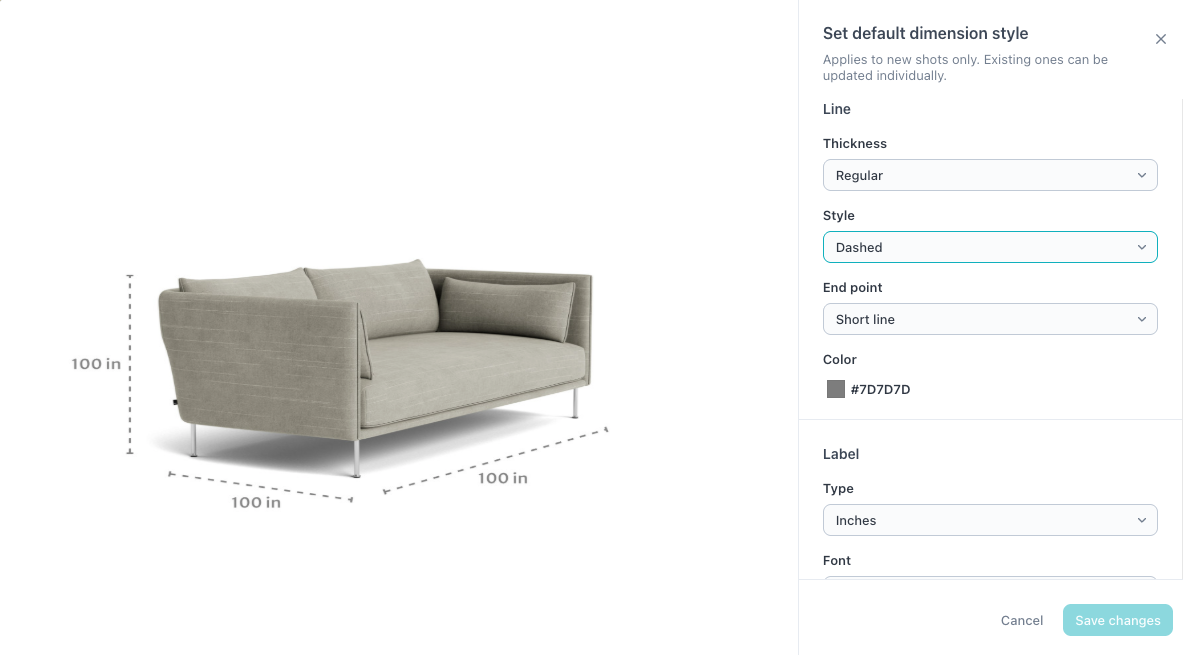
Control the look of your dimension imagery — colors, fonts, line weight, and style — directly in the CMS.
You can now adjust colors, fonts, line weight, and overall style on every line, directly inside the Dimension Shots tool. Apply styling line by line, or set defaults that automatically apply across everything you create.
Dimension imagery is part of your product experience and now its truly part of your brand. No Photoshopping, no back-and-forth, no extra cost — and the styling stays consistent across every product you publish.
• Open any dimension line in the Dimension Shots tool and adjust its color, font, line weight, and style
• To apply your styling across the catalog automatically, head to Manage Styles and set your brand defaults
• Every new dimension line you create inherits the global styling — one setup, applied everywhere
• Updates are live the moment you save — no publishing step, no waiting
Available now —> We recommend setting your global styles first so every new line you create stays on-brand by default.
May 8th, 2026
Improved

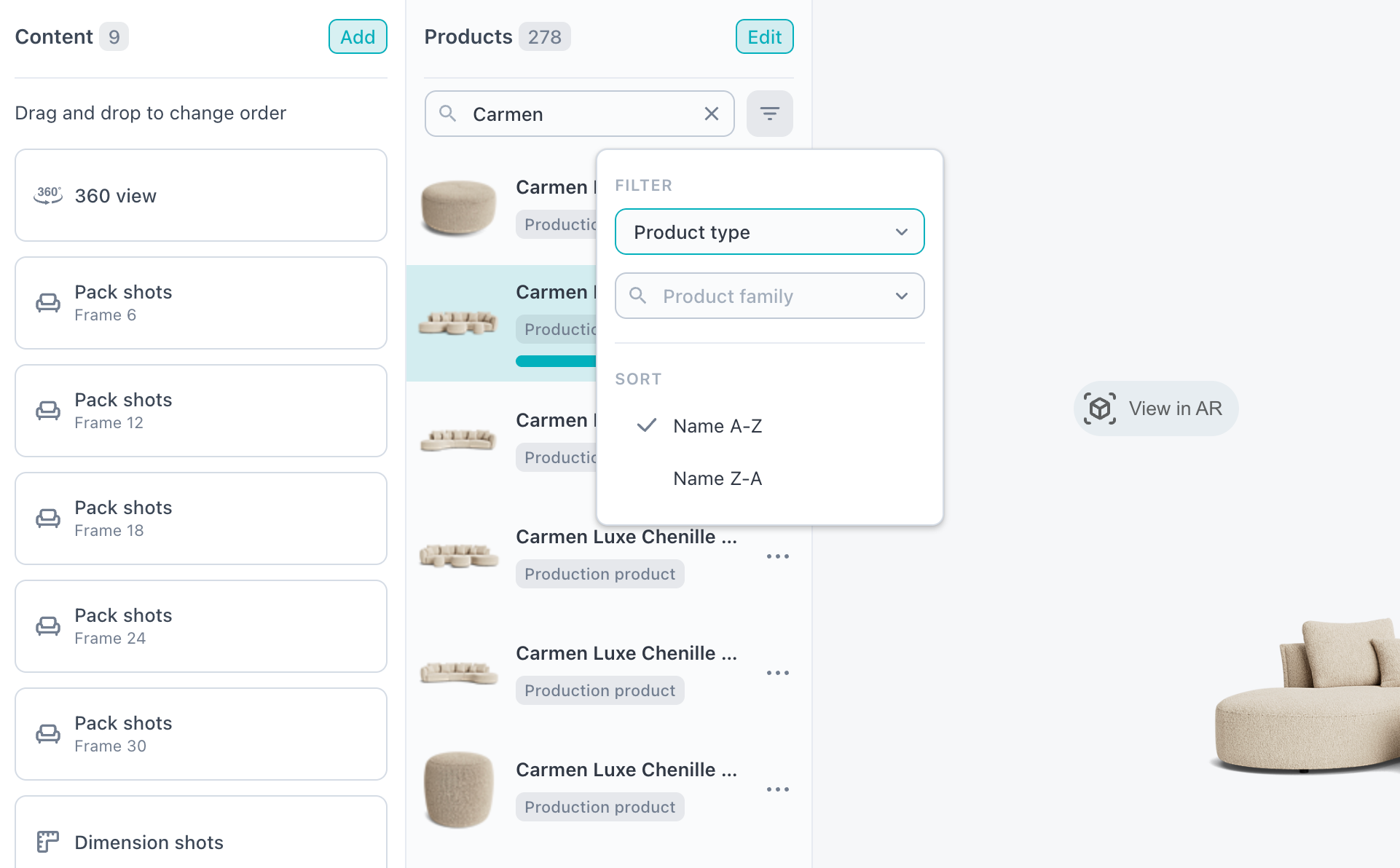
The Curator product list has been updated with faster performance and a new set of discovery tools. You can now search by name, filter by product type and product family, and sort results A-Z or Z-A, making it easier to find and manage products across large catalogs.
April 15th, 2025
New

Modular Designer is a new add-on product in the Cylindo ecosystem that allows you to create interactive, 3D product configurators.
Cylindo Modular Designer is our new 3D configuration experience that brings modular product visualization directly into the Cylindo platform. With support for Modular Configurators, Generators, and Set Builders, this feature empowers customers to design products and bundled sets dynamically—right from your product page.
Whether it’s a sectional sofa, a customizable storage system, or a mix-and-match dining set, Modular Designer bridges the gap between product listings and real-world configurations.
Static imagery views are powerful (and we’ve got the industry’s best). But when you're working with multi-component products, static scenes alone can’t scale. You’d need thousands of pre-renders just to show every combination. Modular Designer solves that.
Shopping for modular products online has traditionally relied on static images and imagination. This results in:
Hesitation at checkout
Confusion over how pieces work together
Limited visual context
With Modular Designer, you can:
📈 Increase buyer confidence and reduce returns
💰 Drive higher order values through bundled purchases
🛠️ Streamline custom orders with real-time visuals, pricing, and more
💡 Equip sales teams and in-store associates with a guided selling tool
Modular Designer is available directly within the Cylindo platform and supports:
Modular Configurators – Click-and-place modules to build customized layouts
Generators – Select from preset options like fabric, color, and dimensions to auto-generate configurations
Set Builders – Combine different product families into unified scenes
Available as both a hosted solution and via iFrame, the designer integrates with your e-commerce stack to enable pricing, cart functionality, BOM, localization, and more.
➡️ To learn how to enable it for your products, reach out to your CSM today.
April 10th, 2025
Improved

Temporarily hide props without deleting them! Toggle visibility with a single click in the side panel or toolbar.
Hidden props still shown in the sidebar for easy tracking
Feature only affects props and custom props
Hidden props are hidden from Live render previews and final renders
February 27th, 2025
New
The Creator Role is the latest role-based permission feature for Cylindo users!
Moving forward, there will be three types of user roles within the system with various permission settings:

Where the Distributor role, introduced previously, allowed administrators to limit the access of certain users from viewing the asset creation workflows, this new role will be able to access all platform workflows.
This is particularly useful for customers working with:
Internal Teams: Limit users like marketing teams to focus on content creation and distribution with the Distributor role. Or, allow access to the expanded platform for those who also need access to the asset creation process.
External Partners: Restrict agencies or integration partners to content creation and usage, preventing access to projects or approval workflows.
When inviting new users, Admins can specify the user’s role at the time of invitation:

To update a user's role, follow these steps:
The management of user roles is done by your organization’s Admin.
Click the ‘Settings’ button at the top right of your screen.
Maneuver from the ‘Settings’ tab to the ‘Users’ tab.
Admins can manage existing roles from the user settings.
Find the user you wish to update and select the ‘…’ next to their name.
Choose ‘Edit user’ and a modal will appear with the new dropdown setting.
Select either "Admin", "Distributor", or "Creator"

For more, check out the Learning Center here.